Using Portal

Sign up on the APARA Portal, secure your account, and retrieve the credentials you need to call the APIs.

Create an account and retrieve credentials

To begin using the APARA APIs, sign up on the Portal and then copy your credentials from the dashboard.

Step 1 – Create an Account

Visit the dashboard and click on Create an Account.

APARA Portal landing page with Create an Account button highlighted

Step 2 – Enter Company Details

Fill in your company details.
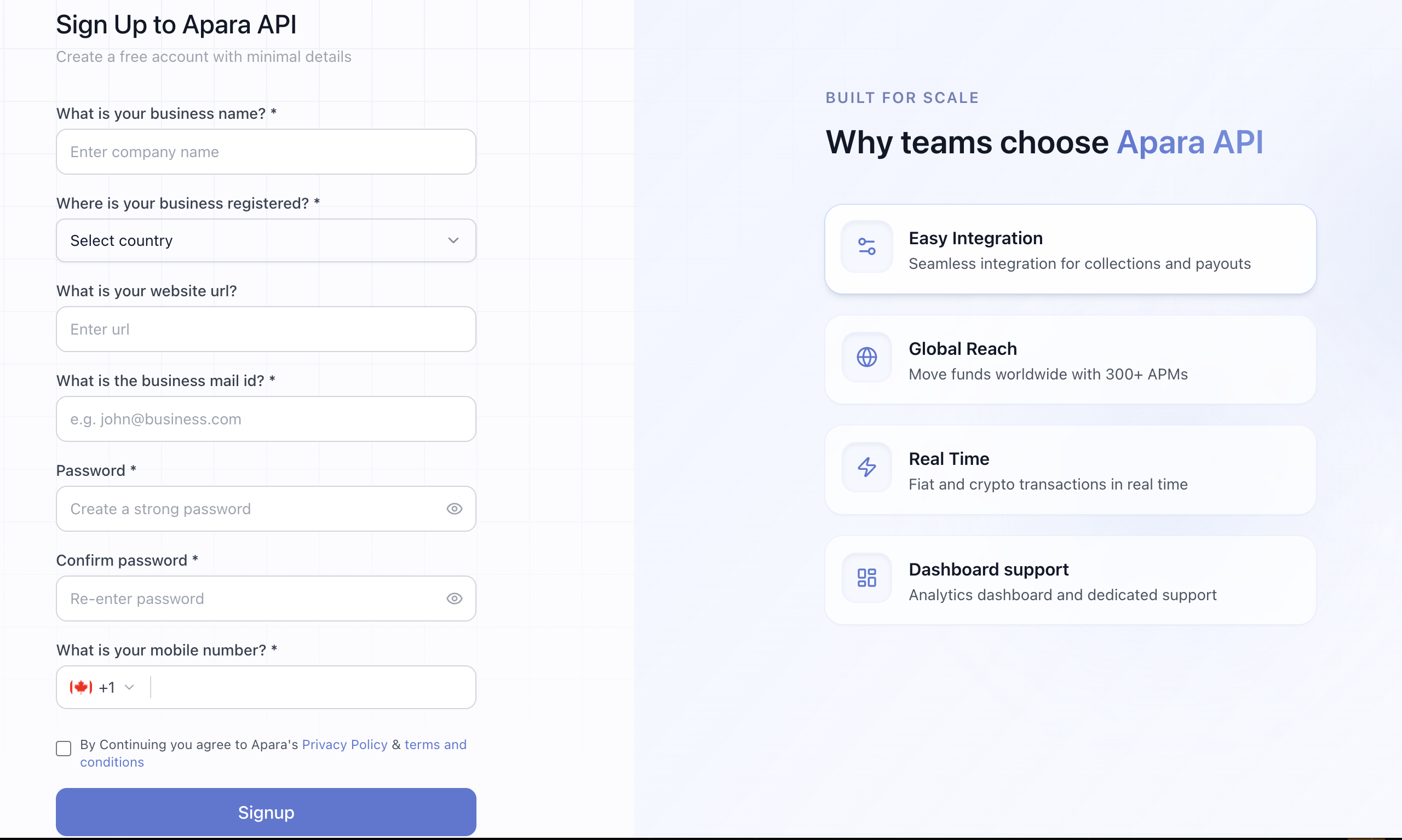
Form page for entering company details during APARA account creation

Step 3 – Setup MFA

Use an authenticator app like Google Authenticator.
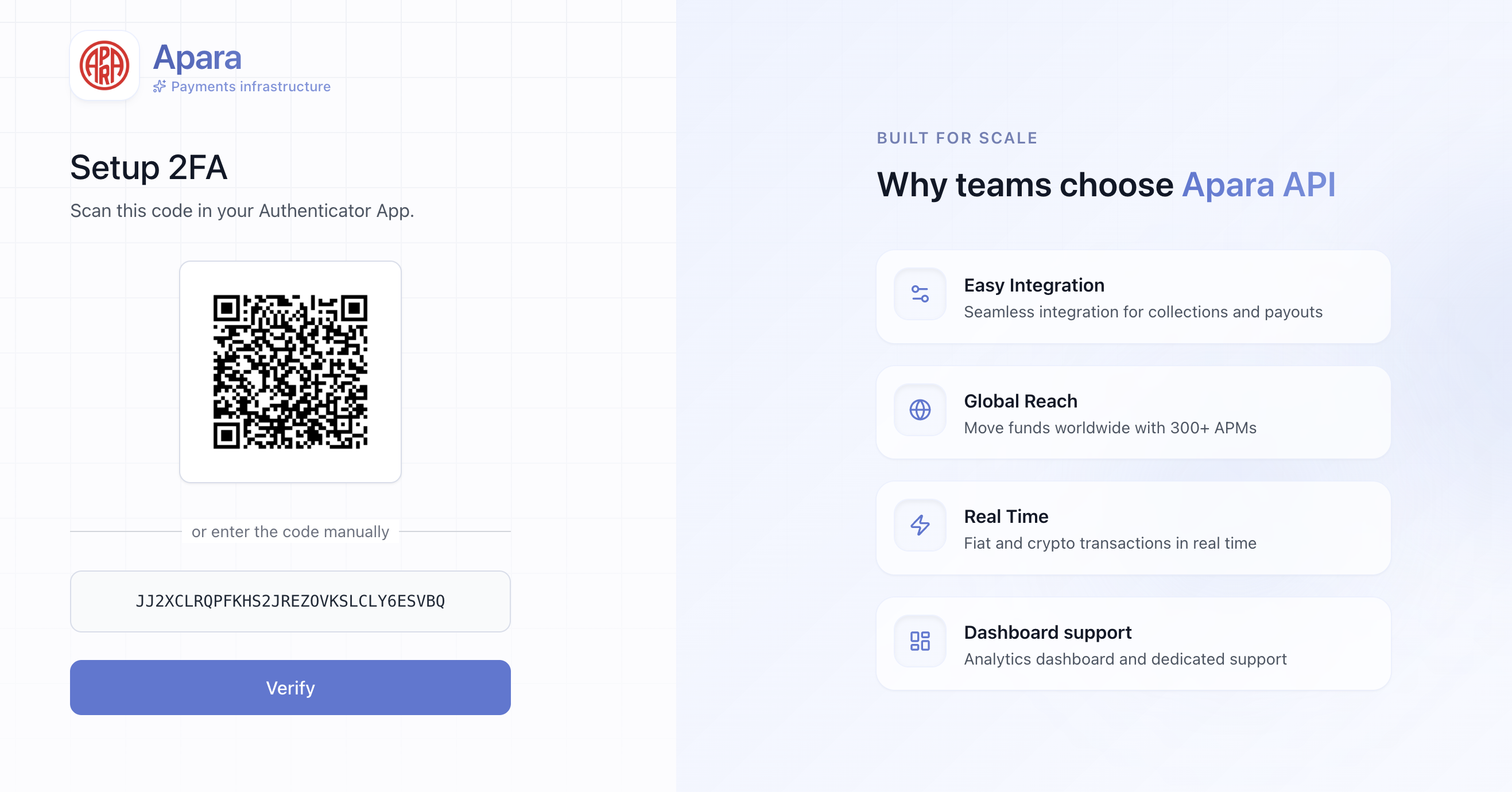
APARA Portal screen prompting user to set up multi factor authentication

Step 4 – Login

Login using your email and password.
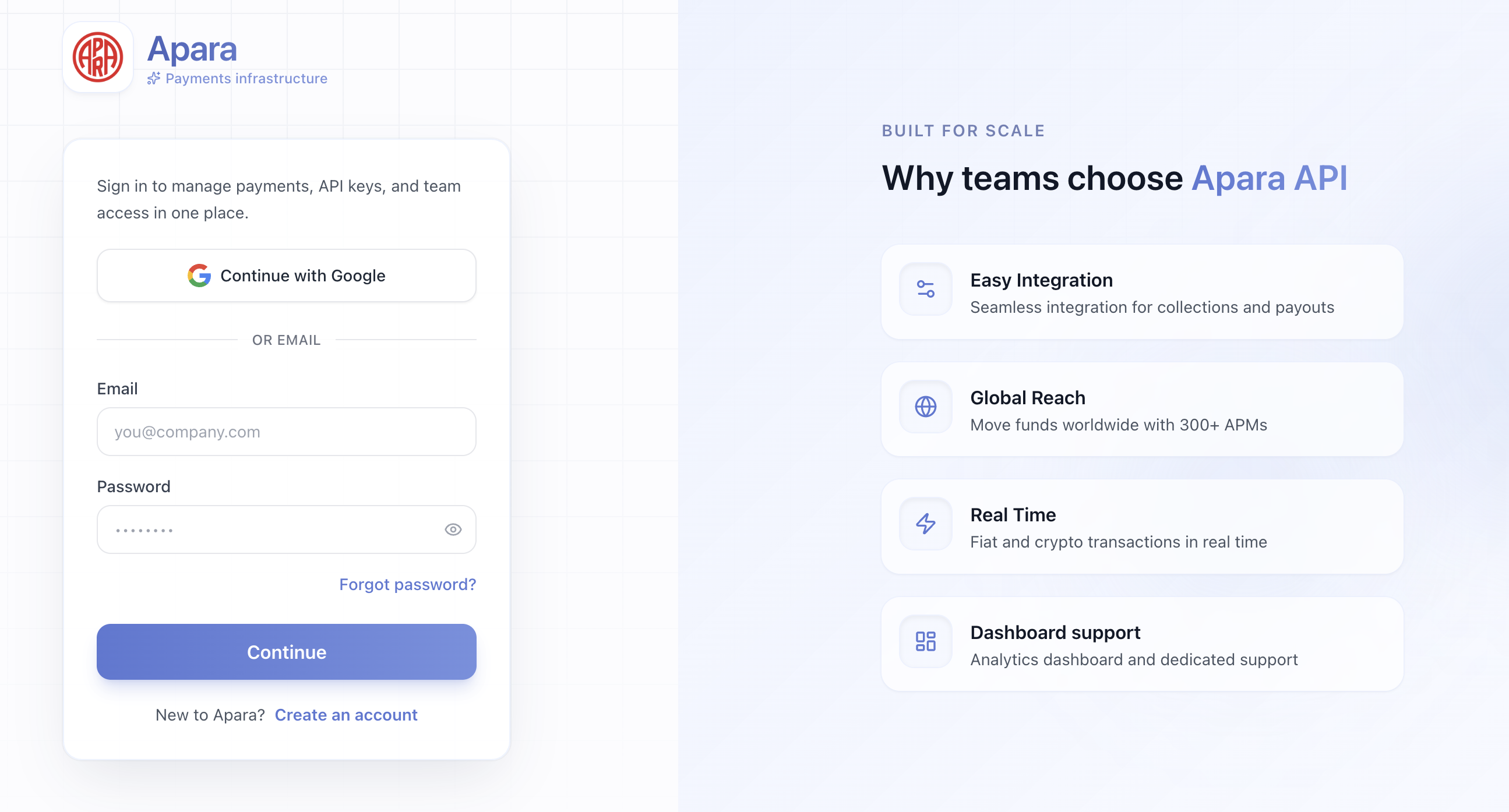
APARA Portal login page requesting email and password

Step 5 – Enter MFA Code

Enter the MFA code.
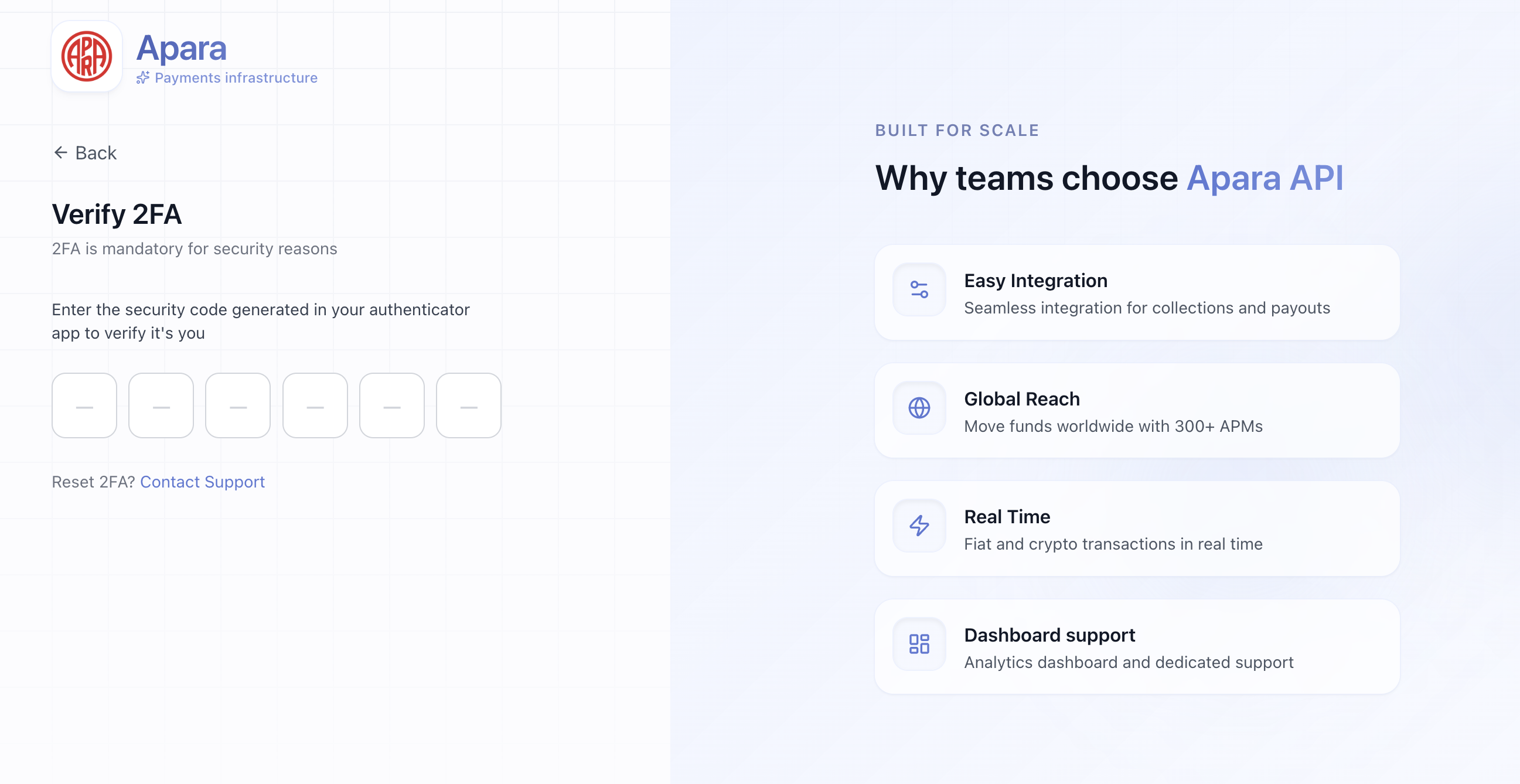
APARA Portal MFA verification screen with code entry field

Step 6 – Login Success

You are successfully logged in.
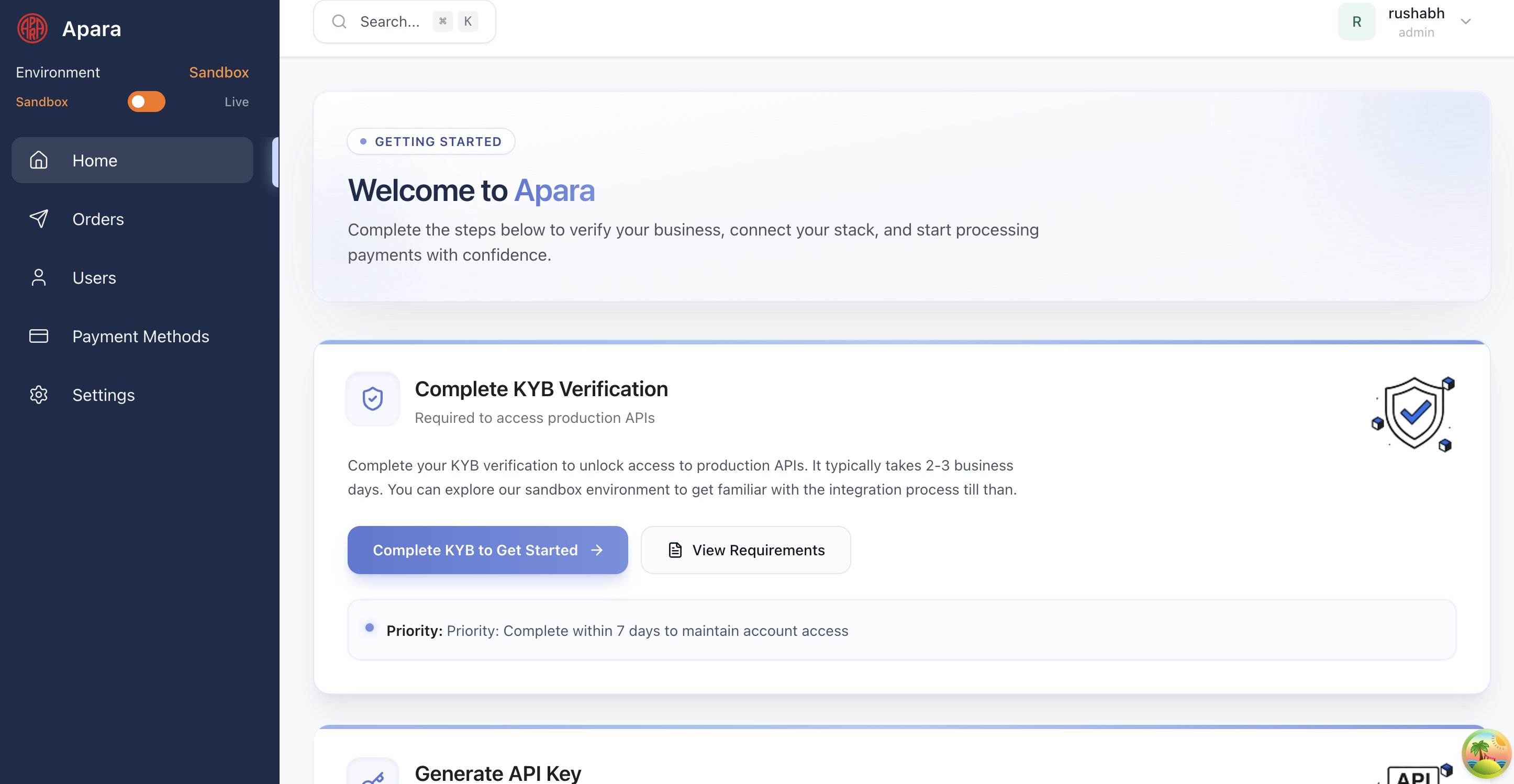
APARA Portal dashboard home screen after successful login

Step 7 – Access Credentials

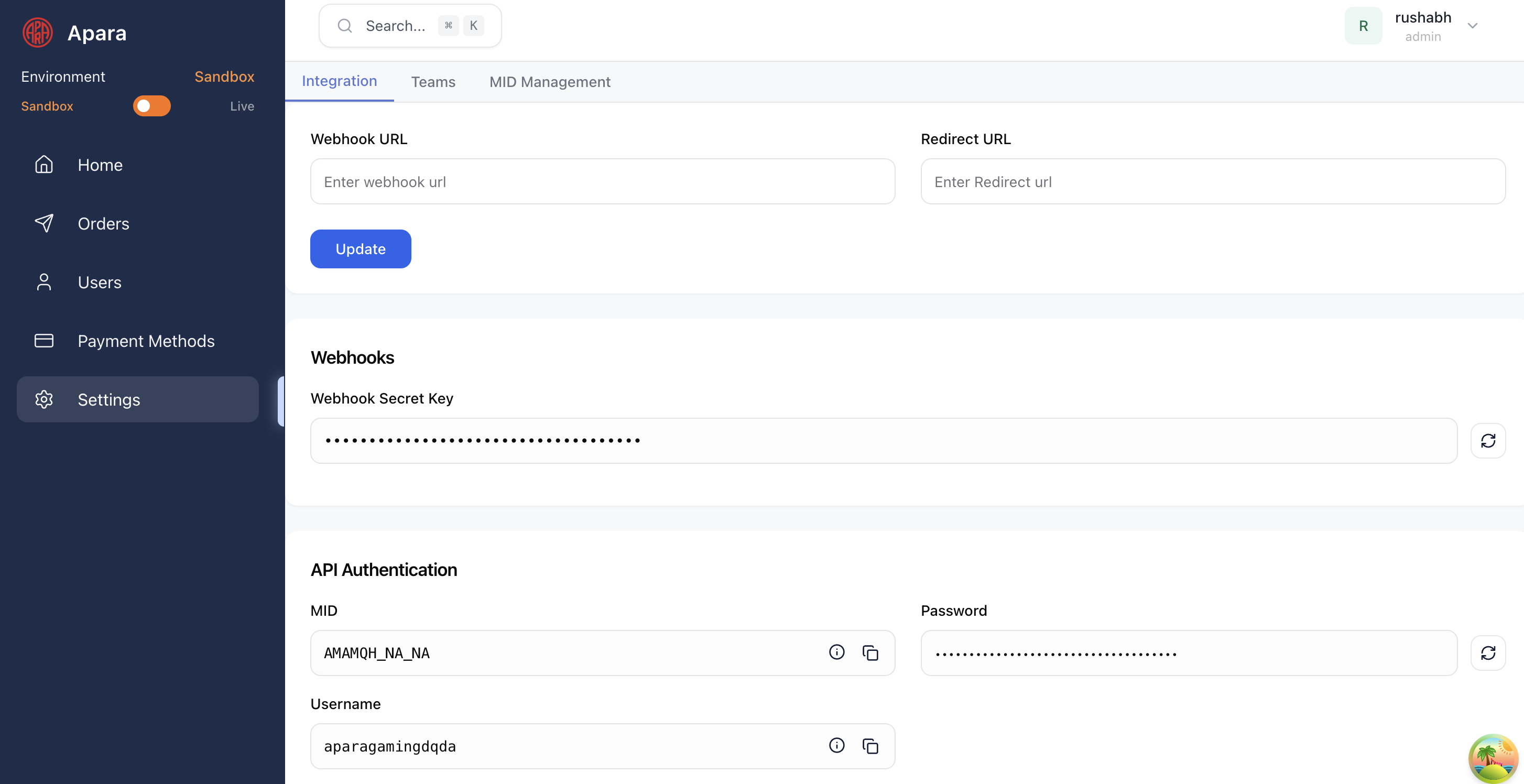
Go to Settings to find:

  • MID
  • Username
  • Password
APARA Portal settings page showing MID, username, and password fields